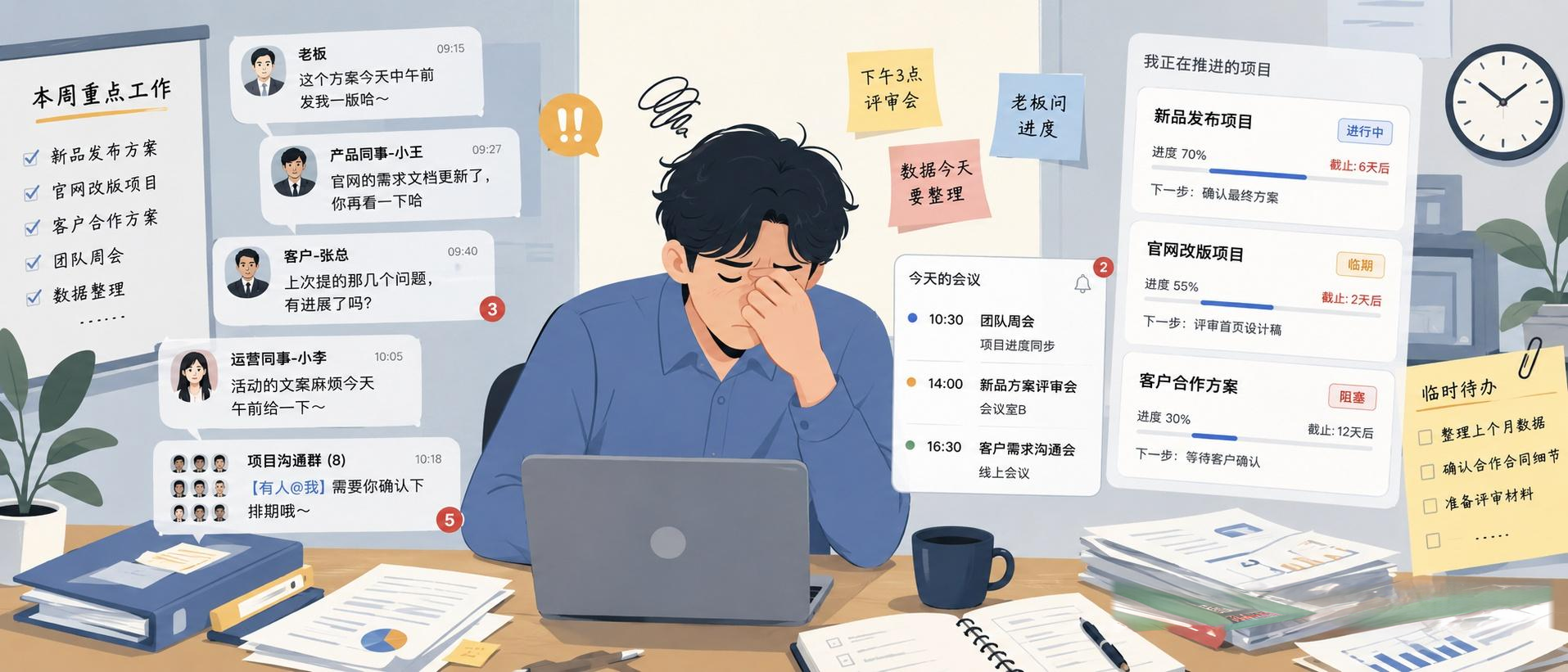
Have you ever felt this way at work: what really tires you out is not that the tasks are difficult, but that they are too fragmented. Suddenly, a task is assigned in a WeChat group, a few more to-dos pop up after a meeting, a colleague asks for your help with a request, and you are simultaneously managing several projects... By the end of the day, you feel like you have been busy all the time, but when night comes, you might still wonder, 'Did I forget something?'
Todo Lists are too simple, while project management software is too heavy. Fortunately, WorkBuddy has recently launched a 'Personal Dashboard' feature that allows you to build your own dashboard using natural language. This changes the dynamic: instead of adapting to task management software, you let WorkBuddy build a 'Personal Work Cockpit' according to your work habits. Below, I will share the complete process.
First, What is WorkBuddy's 'Personal Dashboard'?
If you are using this feature for the first time, you can simply understand it as: incorporating the small tools you frequently use directly into WorkBuddy.
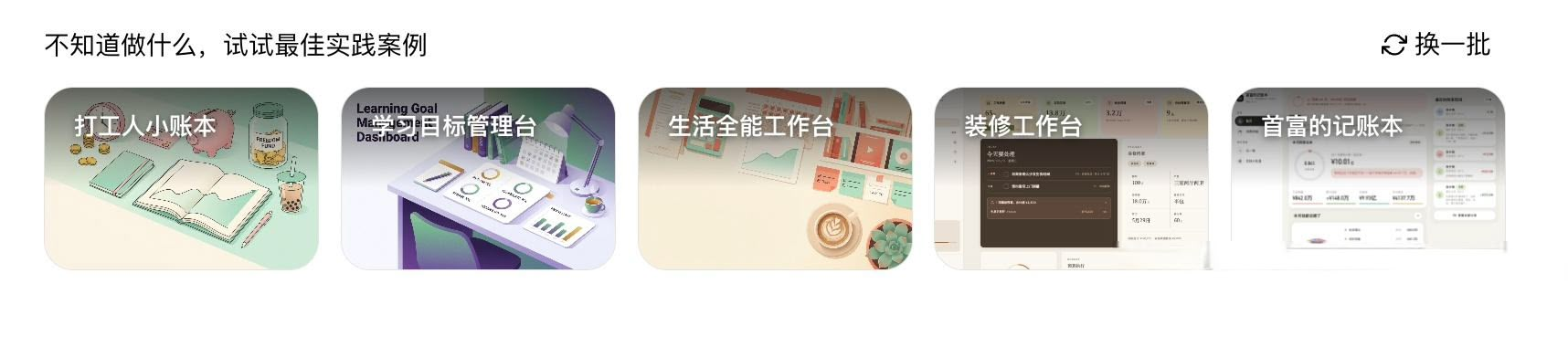
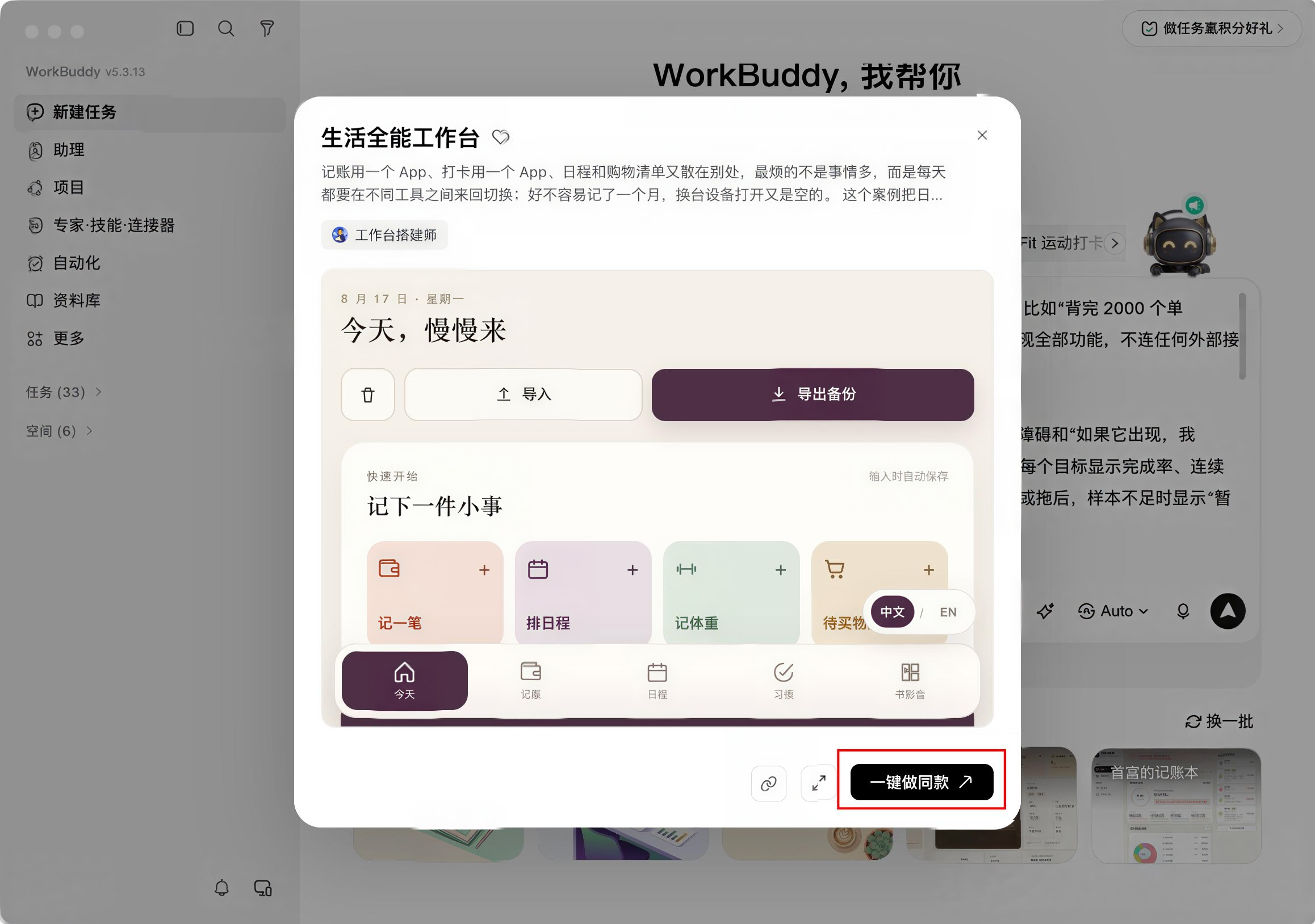
You can start by 'duplicating' from ready-made templates:
Alternatively, you can enter the 'Dashboard Builder' to start from scratch, directly describing the kind of dashboard you want.
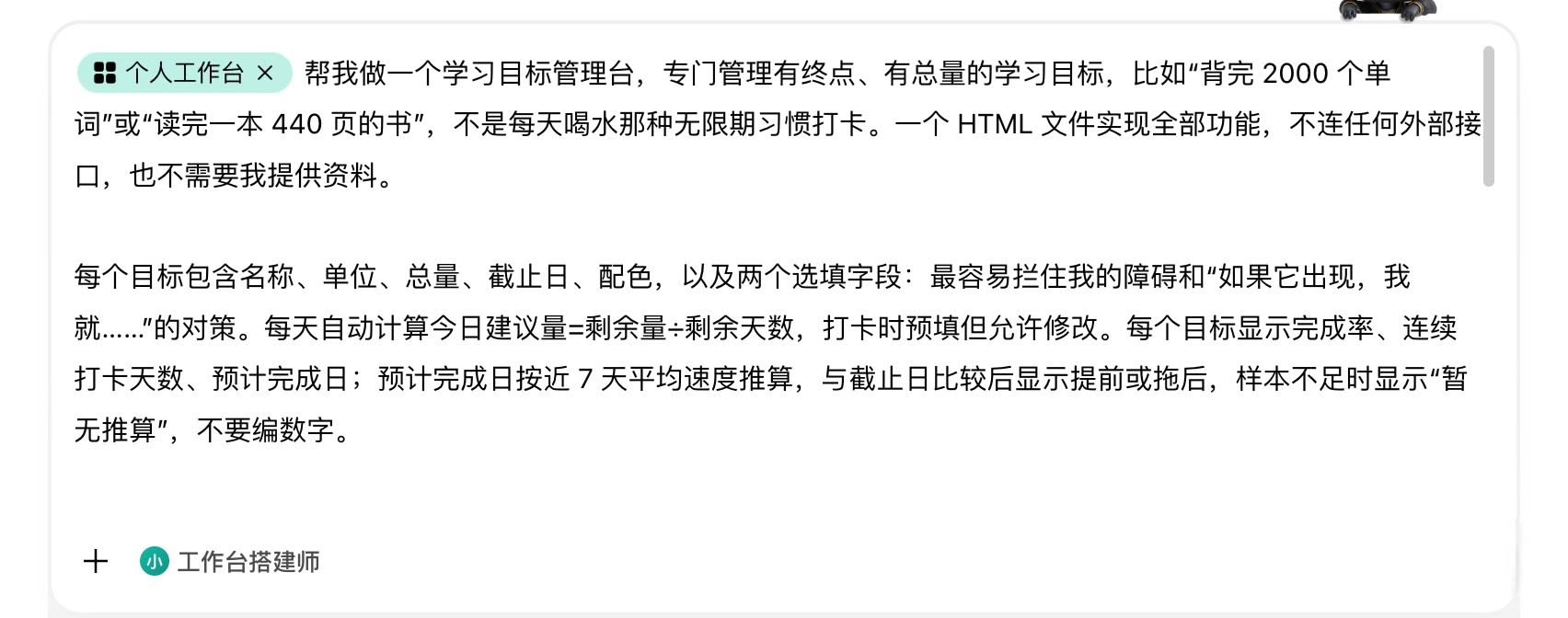
The first version is not the end: if something is not working well, you can continue to provide feedback; if you want to add a module, you can do so; if you don't like the layout, you can continue to adjust it. The entire process is very much like you providing the requirements and WorkBuddy being responsible for building the dashboard.
Before Building, Clarify 3 Questions
Don't just say 'help me build a task management tool'—if you write it that way, it will likely become just another ordinary Todo List. First, ask yourself: what is the most important problem I want to solve when I open this dashboard every day?
In the end, there are actually only three:
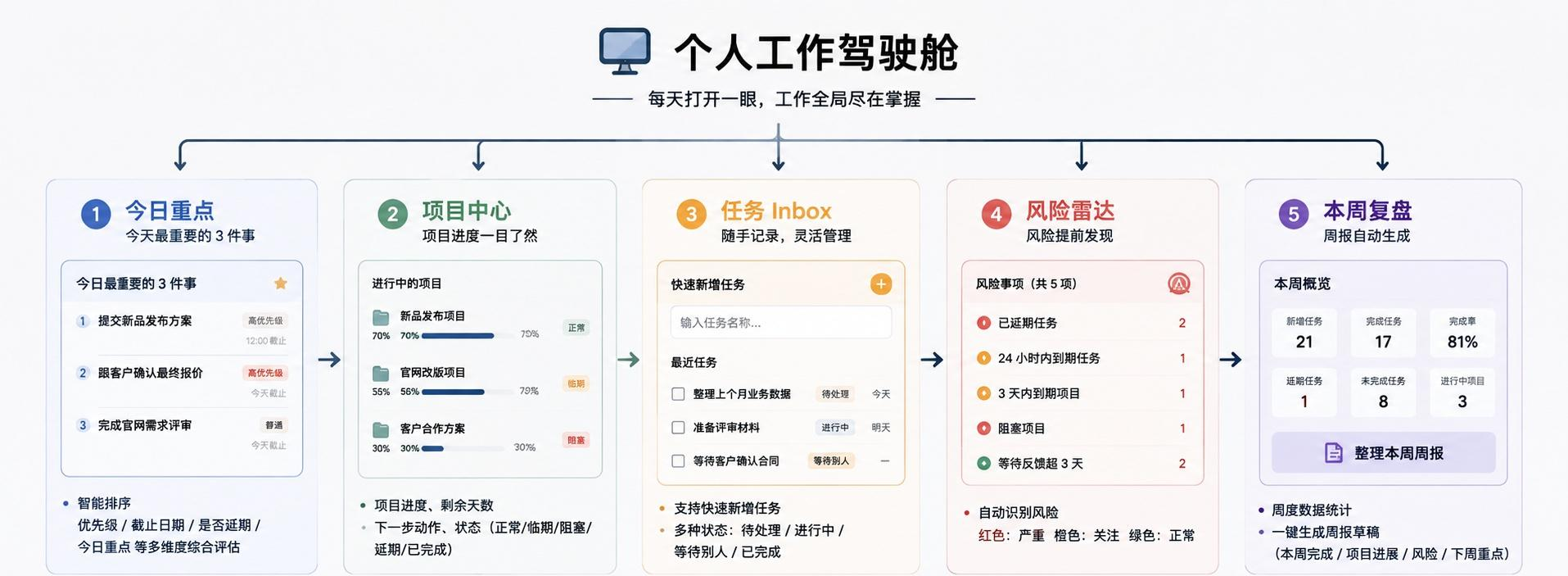
First, what should I do first today? No matter how many tasks there are, I want the homepage to directly tell me the 3 most important things, rather than having me sift through dozens of to-dos to find the key points.
Second, which tasks are about to cause problems? I want a 'risk radar' that highlights items that are overdue, nearing deadlines, blocked, or have been waiting for others' feedback for a long time.
Third, what exactly did I accomplish this week? After completing tasks, retain the necessary records, so that on Friday, I can directly organize the week's completion, project progress, risks, and next week's priorities.
Around these three questions, the entire personal dashboard is set to: Today's Priorities + Project Center + Task Inbox + Risk Radar + Weekly Review.
After Clarifying, Enter the 'Dashboard Builder'
Next is the actual building process. Open WorkBuddy, find the 'Personal Dashboard' in the 'Daily Office' template, and click on it:
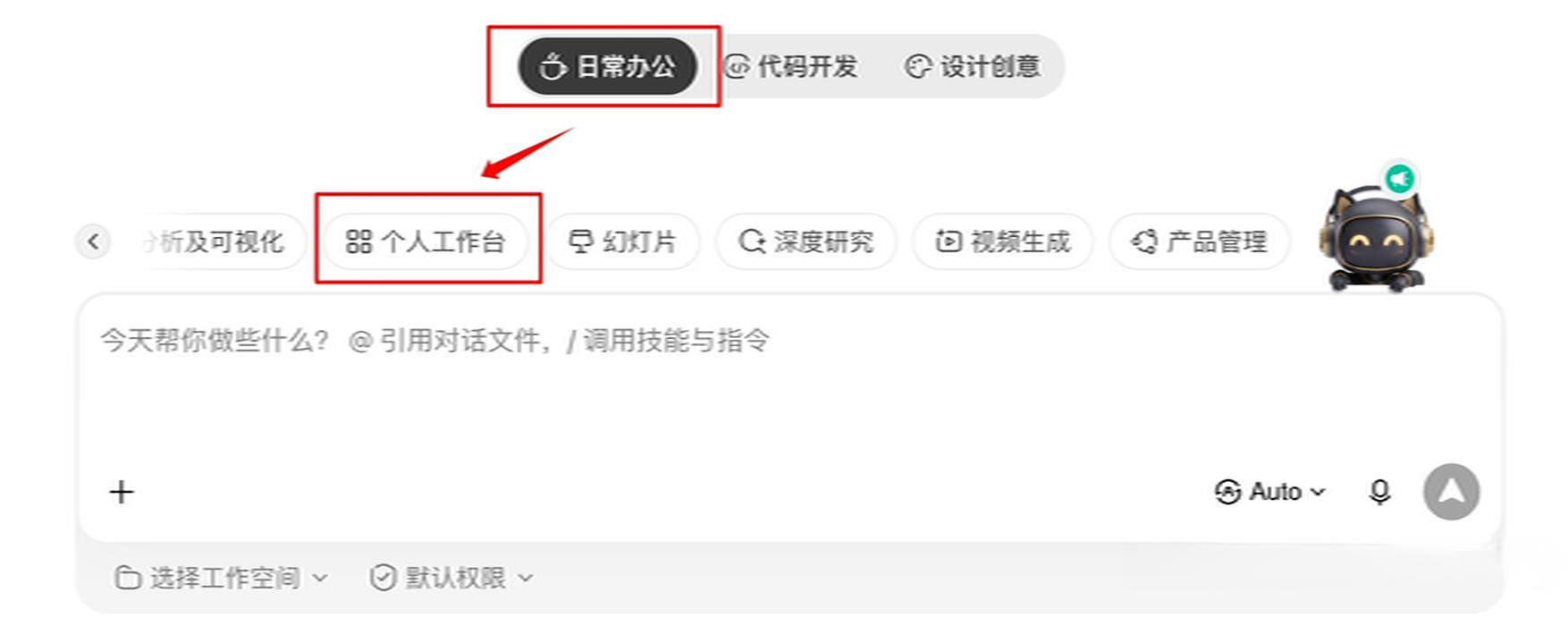
Enter the 'Dashboard Builder' mode and input your requirements. There are two approaches here: if the ready-made template is already close to your needs, you can duplicate it and then gradually modify it; but this time, I wanted to create a personal work system that combines tasks + projects + risk reminders + weekly review, so I directly described the requirements from scratch.
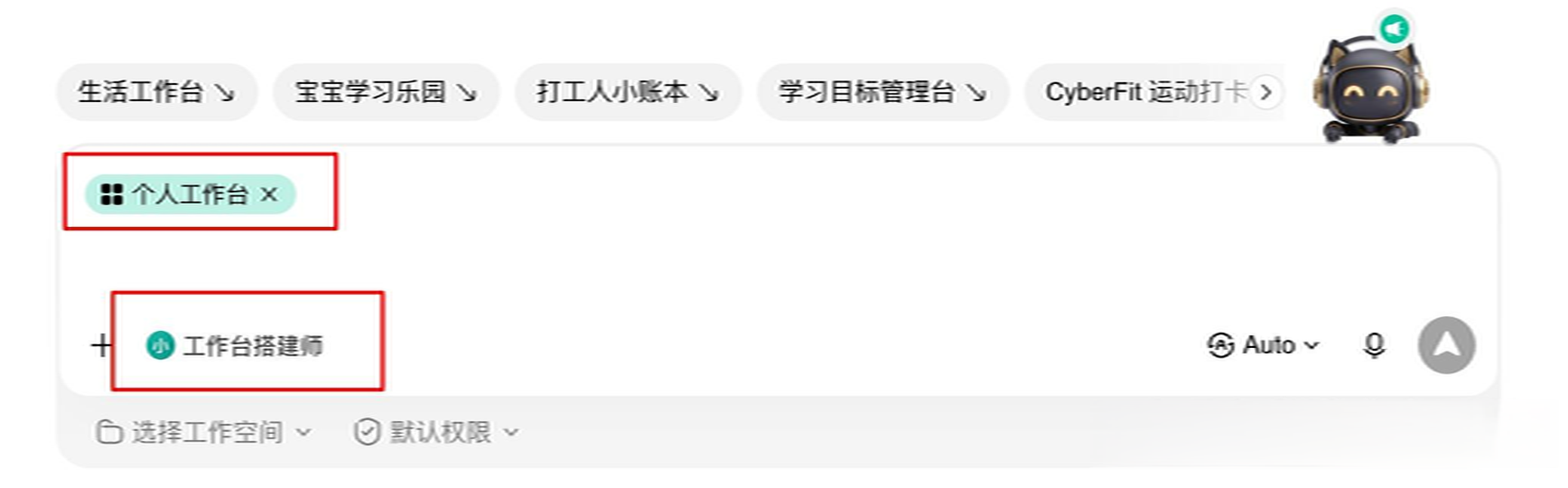
Here's a tip: the prompt doesn't have to be written very long from the start; you can start with the core requirements and then modify it gradually through dialogue. The following prompt is written in detail so that you can copy it directly and the first version will be as close to a usable state as possible.
Complete Prompt:
Please help me build a 'Personal Work Cockpit'. This is a daily-use personal dashboard for professionals to manage multiple projects, multiple tasks, and the temporary issues that arise.
Core Goal: After opening the dashboard every day, I need to be able to identify within 30 seconds:
- What is the most important thing to do today;
- Which tasks are overdue or about to be due;
- Which projects are currently in progress;
- Which issues are blocked or waiting for others' feedback;
- What has been accomplished this week.
Please prioritize making the functions truly usable, and then optimize the visuals. All buttons, filters, state changes, and data logic must be able to be used in practice, not just static UI demonstrations.
1. Homepage: Today's Workbench
Top Display: Today's date, number of tasks to be completed today, number of tasks completed today, number of overdue tasks, number of projects currently in progress.
The most important area of the homepage displays: 'The 3 most important things today'. Sorting logic:
- Overdue high-priority tasks
- High-priority tasks due today
- Ordinary tasks due today
- Tasks manually marked as 'Today's Priority' by the user
- Other tasks sorted by deadline
Below are displayed: Due today, Overdue, Waiting for others, Completed today. Tasks support: Quick completion, editing, modifying deadline, modifying status, deletion.
2. Project Center
Supports creating multiple projects. Each project includes: Project name, project description, start date, deadline, priority, current progress, next action, project status, remarks. Project status: Normal, Nearing Deadline, Blocked, Completed.
Project cards mainly display: Project name, current progress, remaining days, number of incomplete tasks, next action, current status. If the project has exceeded the deadline and is not completed, it shows overdue risk; if it is within 3 days of the deadline and not completed, it shows nearing deadline reminder; if the user manually sets it to blocked, it prioritizes displaying the blocked status.
3. Task Inbox
Provides a clear quick-add task entry. When adding a task, only the task name is mandatory, other information can be added later. Task fields include: Task name, project it belongs to, deadline, deadline time, priority (high/medium/low), status (pending/in progress/waiting for others/completed), whether it is today's priority, remarks.
Allows tasks without a project. Tasks and projects need to retain the necessary creation, modification, completion, and status change times for risk assessment and weekly statistics.
4. Risk Radar
Automatically filters and centrally displays:
- Tasks that have passed the deadline but are not completed
- Tasks due within the next 24 hours
- Projects that are within 3 days of the deadline and not completed
- Projects marked as 'Blocked' by the user
- Tasks with the status 'Waiting for others' that have lasted more than 3 days
Sorted by severity of risk. Visual state: Red = Severe risk, Amber = Needs attention, Green = Normal. Do not use high-saturation colors extensively, only use them appropriately in numbers, labels, and status prompts.
5. Weekly Review
According to the current natural week, it counts: Number of new tasks this week, number of tasks completed this week, number of incomplete tasks, task completion rate this week, important tasks completed this week, current status of each project, current overdue tasks, high-priority tasks that still need to be addressed next week.
Add a 'Organize This Week's Report' button. Based on the real data recorded in the dashboard, organize a draft of the weekly report according to the following structure: 1. This Week's Completion; 2. Project Progress; 3. Issues and Risks; 4. Next Week's Priorities. The generated text supports one-click copying.
6. Data Management
The task and project data in the dashboard need to be continuously saved, and the data cannot be lost after refreshing or reopening. At the same time, provide: Data backup, data recovery, clear all data. Clearing data must be confirmed twice.
7. Demonstration Data
When first opened, preset a small amount of sample data to facilitate understanding. Sample projects: 1. New Product Launch Project; 2. Official Website Redesign Project; 3. Customer Cooperation Plan. Simulate: Normal progress, nearing deadline, existing blockage. Preset 8 to 10 tasks of different statuses. Also provide a 'Clear Sample Data' entry to facilitate official use.
8. Visual Design
Overall, adopt a modern, concise, and professional personal dashboard style, do not make it into a traditional back-office management system. Requirements: Lots of white space, clear information hierarchy, card layout, moderate rounded corners, soft shadows, simple icons, highlight the most important information on the homepage, do not pile up too much data at once, consider both computer and mobile use.
Please complete a truly usable version first.
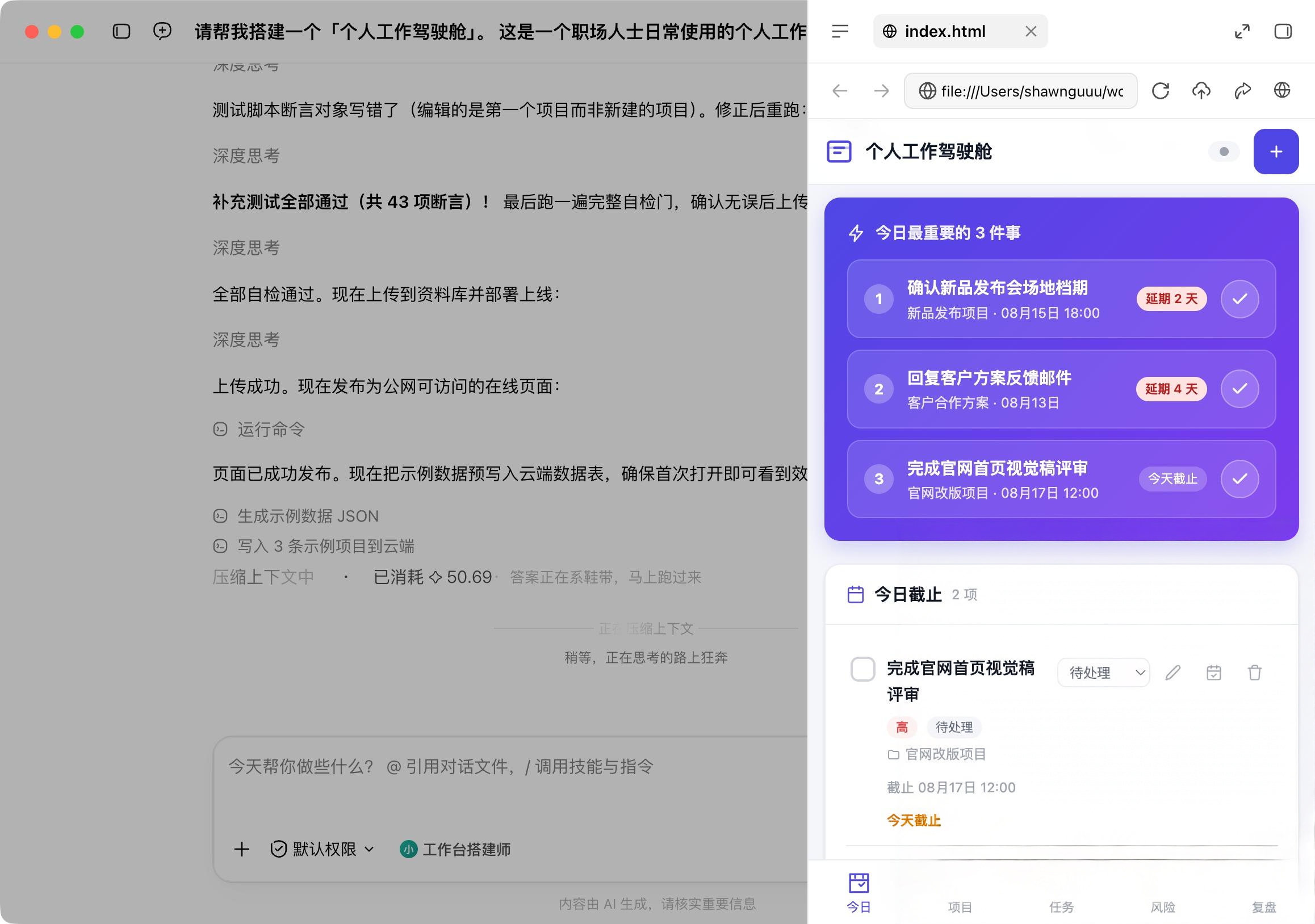
After submission, WorkBuddy began to build it by itself:
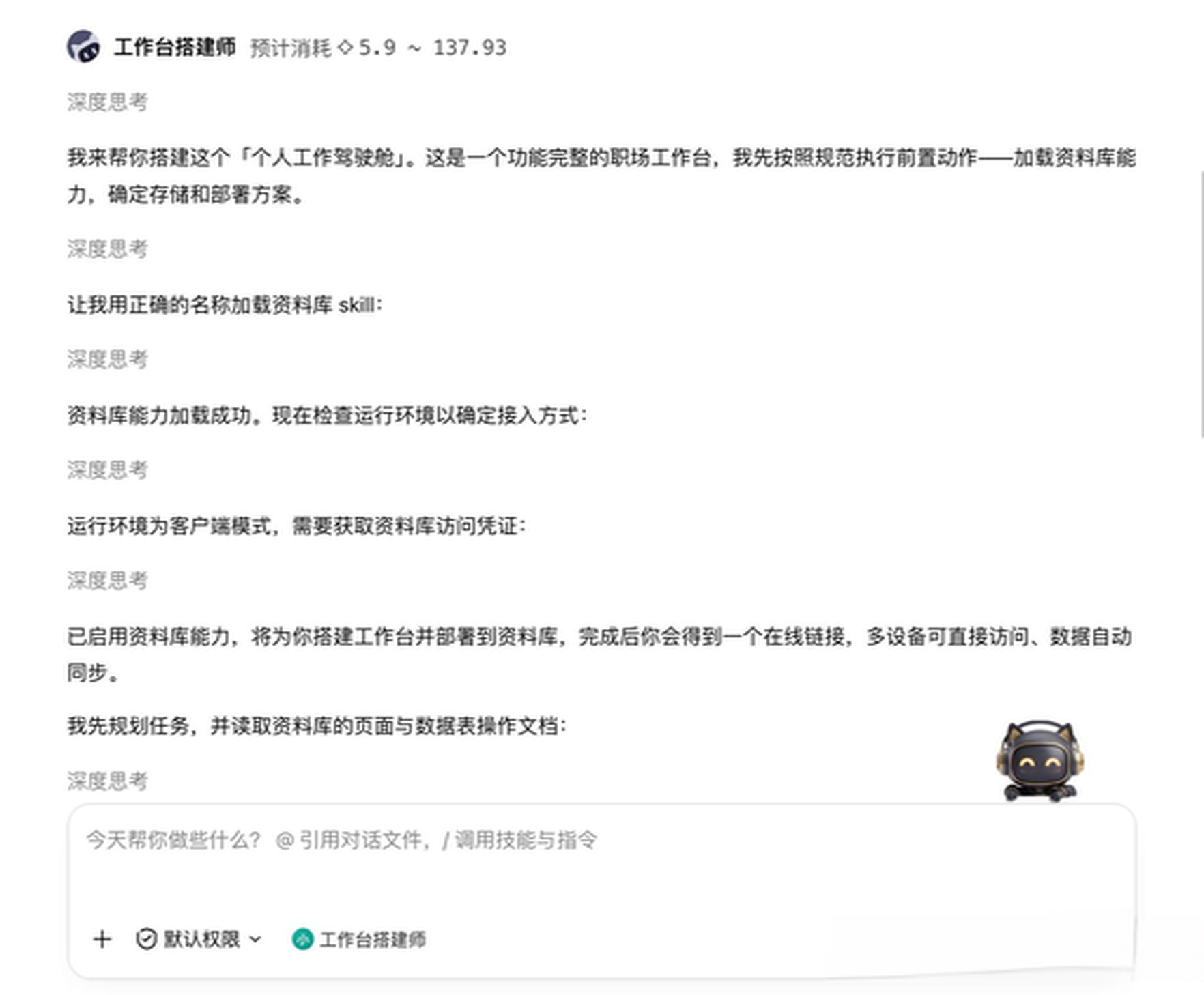
After the first version came out, the modules of tasks, projects, risk radar, and weekly review were basically there:
After the personal dashboard is built, it is necessary to run it through a real test to ensure that all modules are functioning properly:
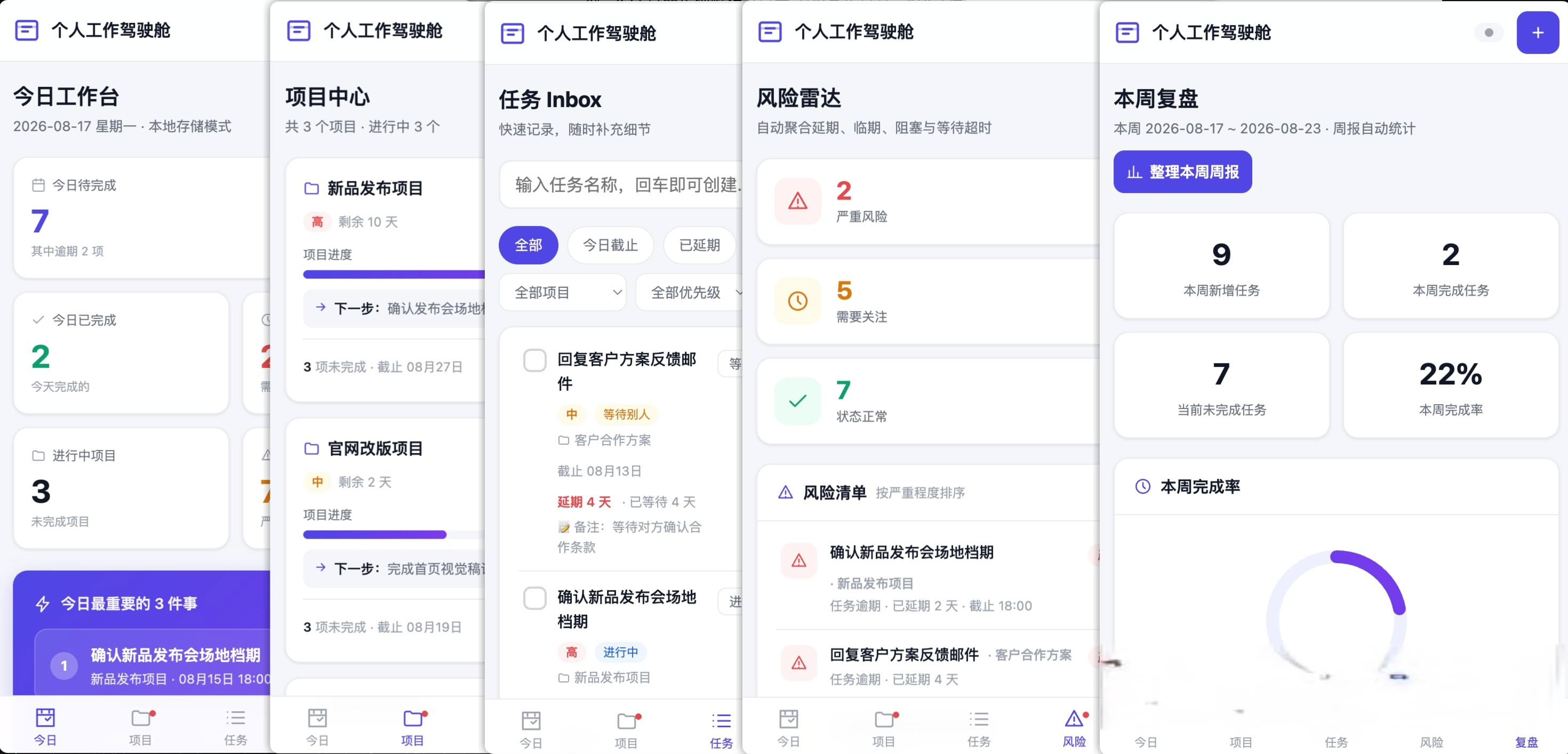
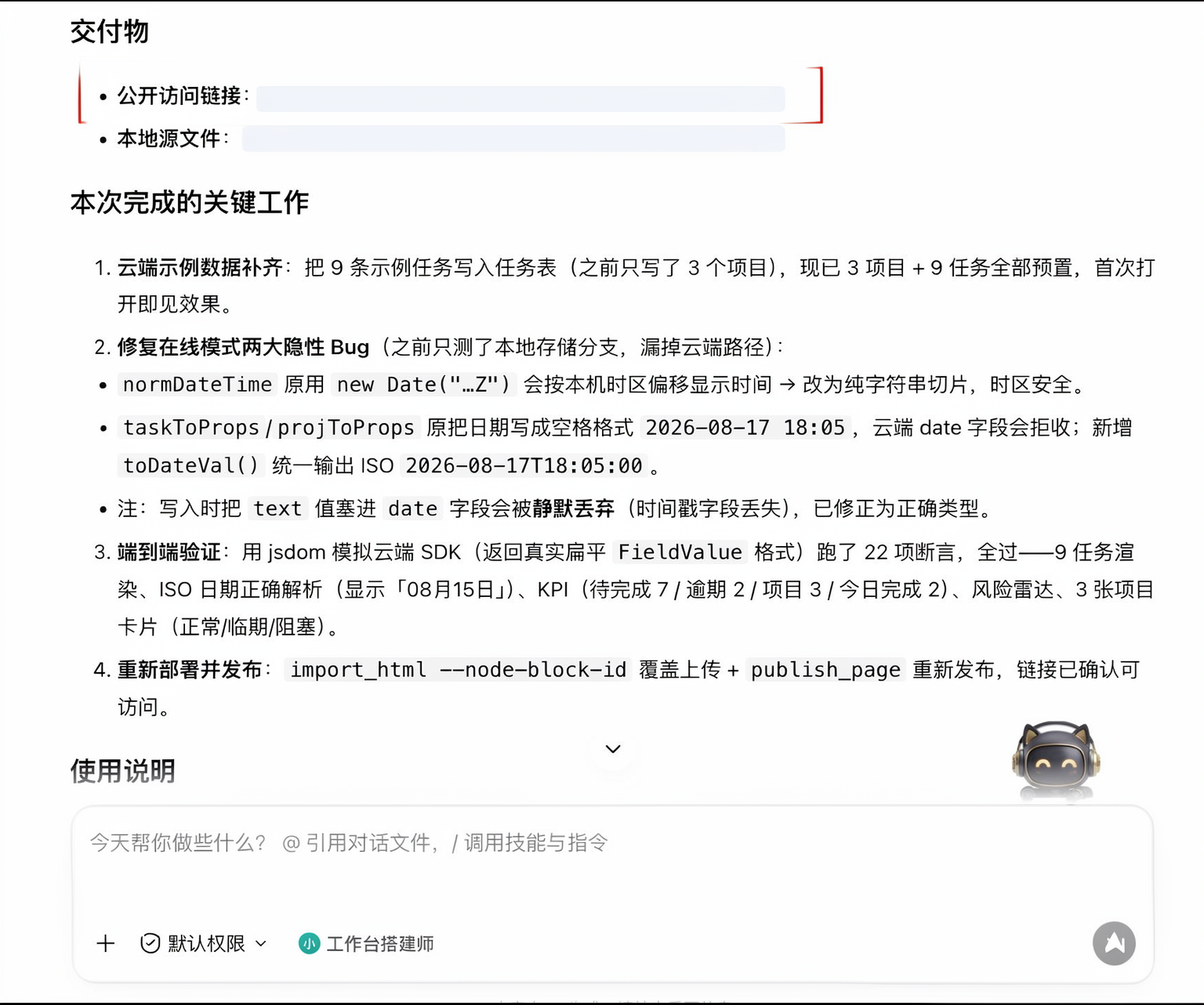
Because no matter how beautiful a dashboard is, if the data disappears after a refresh or the status doesn't change accordingly, it is still just a pretty demo.
After completion, it will provide a public access entry—the created dashboard can not only be accessed locally but can also be used directly in a browser as long as there is internet. Like this:
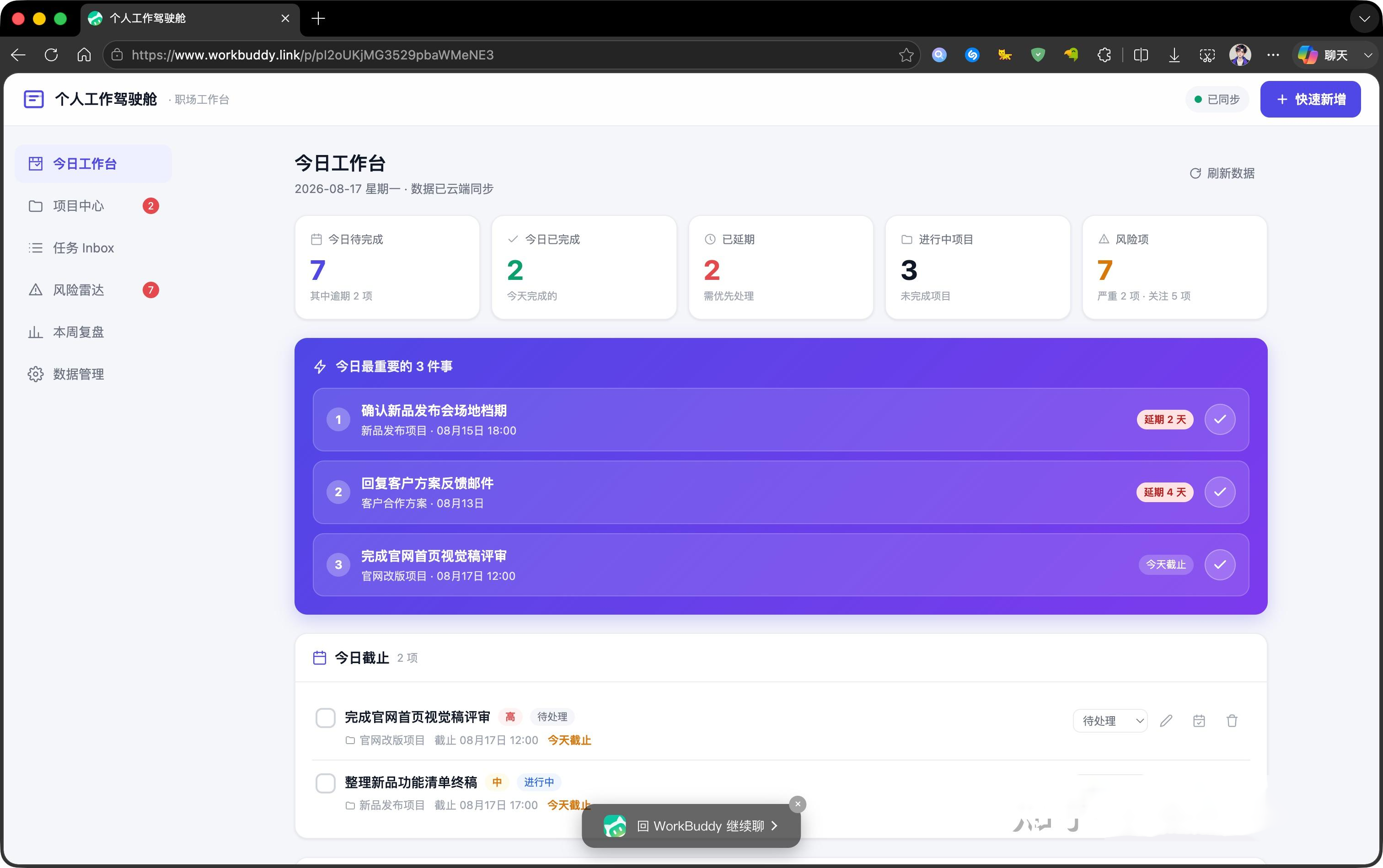
Only then does it have non-toy functionality and the appearance of a truly usable product.
Not Satisfied with the First Version? Continue to Modify in the Personal Dashboard
The first generation does not need to be perfect.
For example, if there is too much information on the homepage, I directly tell WorkBuddy:
Highlight 'The 3 most important things today' on the homepage, and appropriately downplay other data.
After modification, it will be synchronized to the online version:

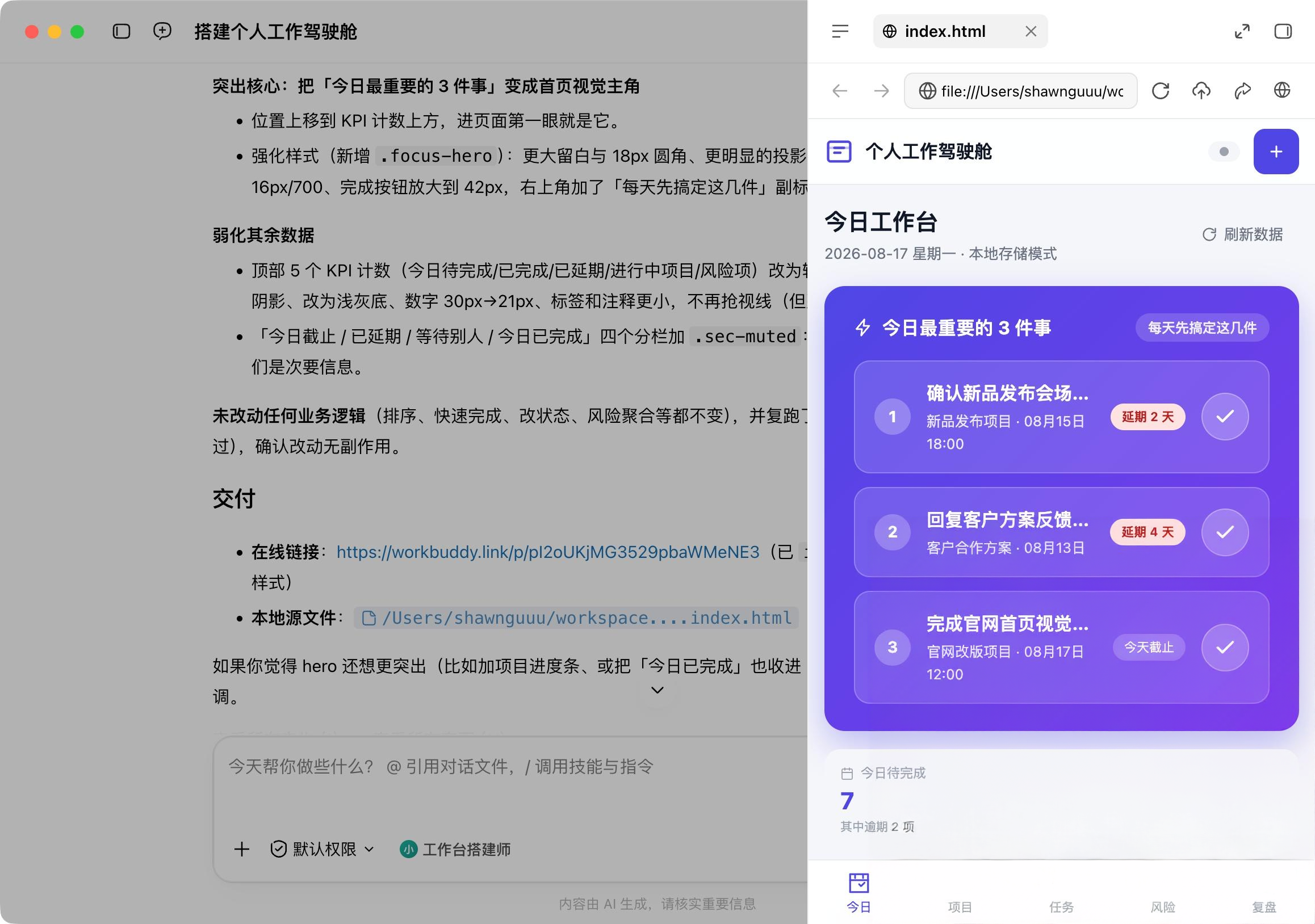
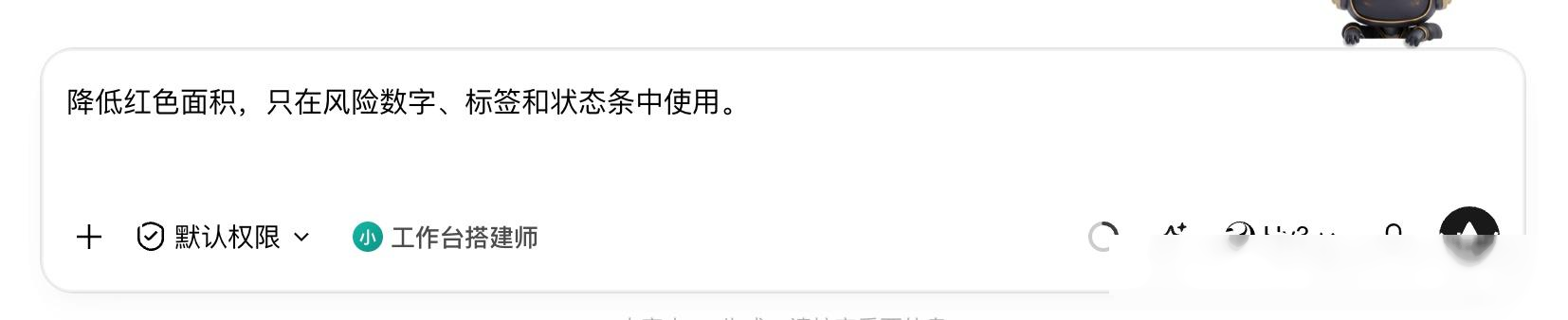
If the risk prompts are too eye-catching:
Reduce the red area, only use it in risk numbers, labels, and status bars.
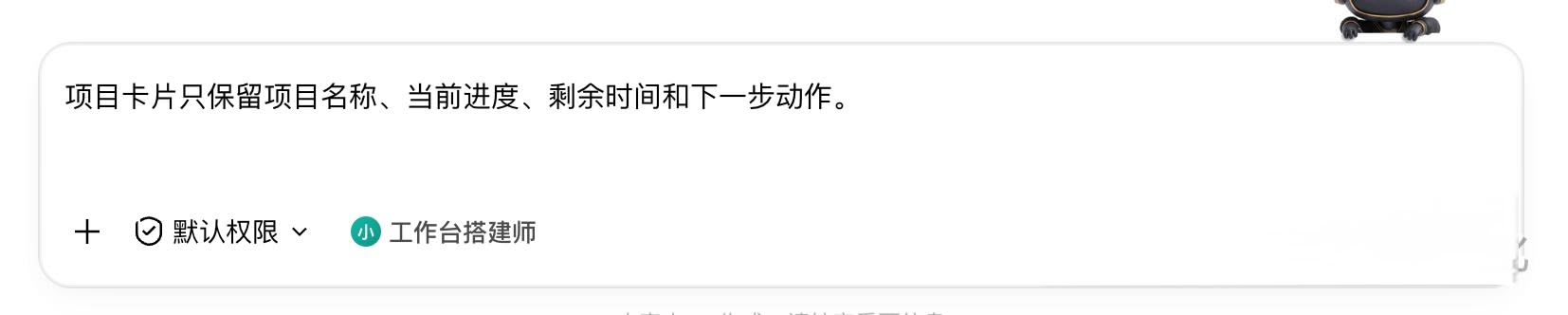
If you feel that the project card information is too much, you can continue to say:
Project cards only retain the project name, current progress, remaining time, and next action.
Wherever it is not convenient, continue to modify it. The entire process is actually: I am responsible for providing the requirements, and WorkBuddy is responsible for continuously adjusting the dashboard to the state I want.
Run with Real Rhythm for a Week
After the dashboard is built, I ran it according to my real work state: in the morning, I check priorities and risks, throw temporary tasks into the Inbox, and update the status as soon as there is progress:
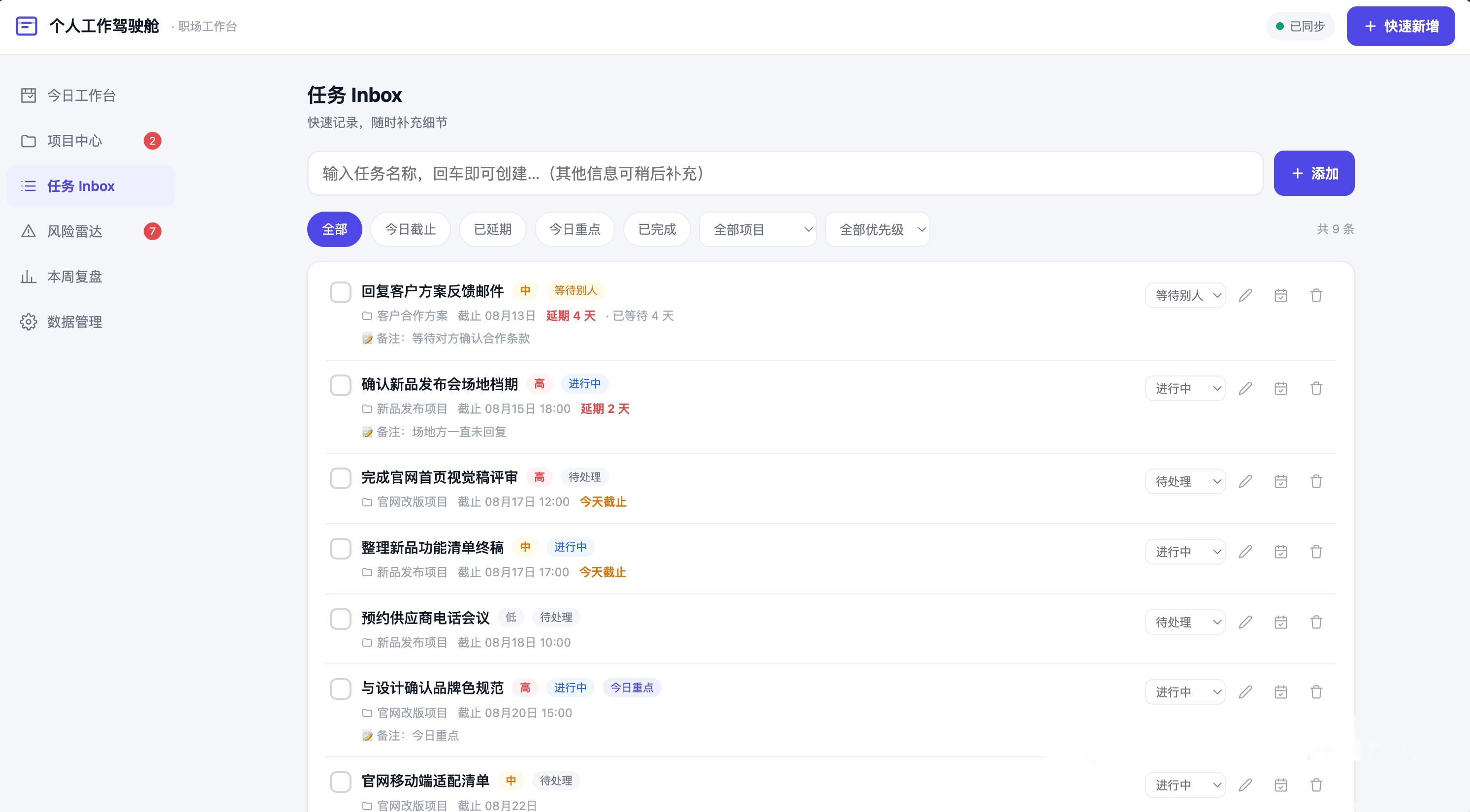
The data can also be backed up, restored, and exported:
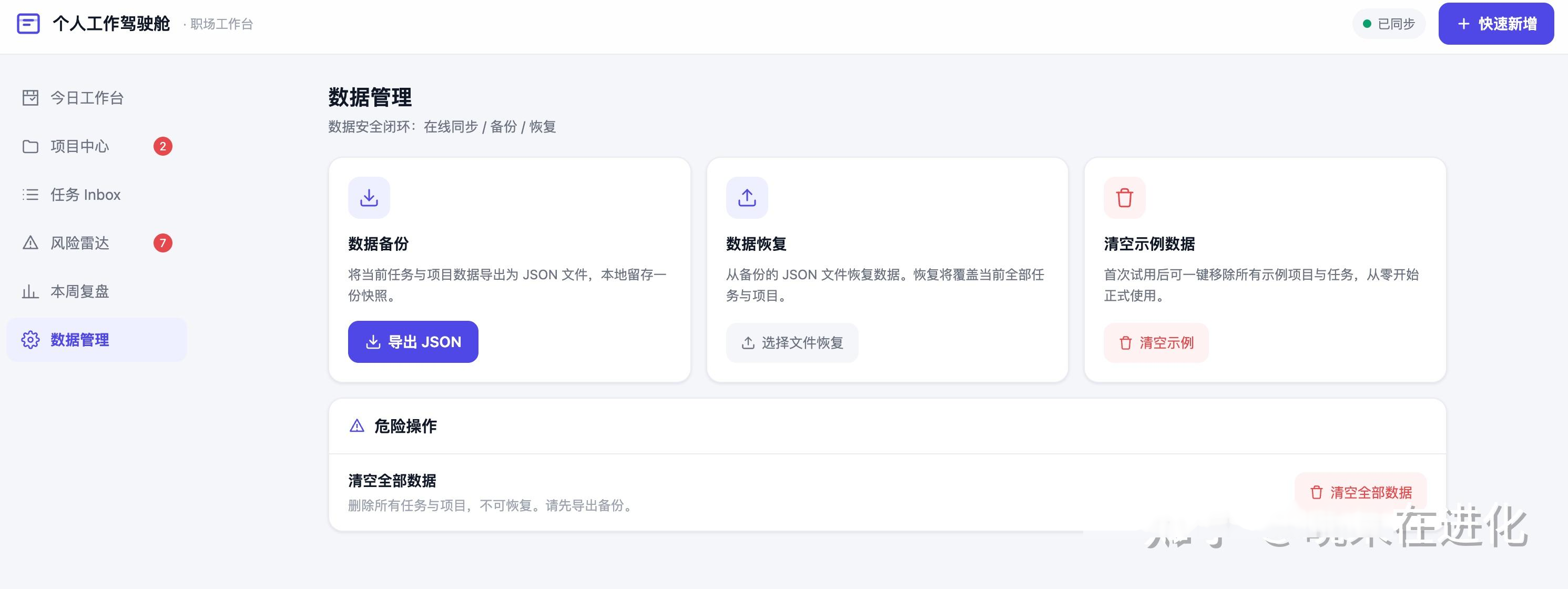
Only when the usage cost is low enough can it be truly used for a long time.
This is the Really Interesting Part of the 'Personal Dashboard'
Looking at the functions of task management, project advancement, and risk reminders, there are mature tools on the market. The really interesting thing about WorkBuddy's 'Personal Dashboard' is not that there is another task management template, but that: this dashboard can be built to the state I want according to my way of working.
If you only want to see the 3 most important things on the homepage, just highlight 3 things; if you want to add a risk radar separately, just add it; if a place is not convenient, you can continue to let WorkBuddy modify it.
Before, we were more in the process of looking for: is there a software that is just right for me? Now we can reverse it: let the dashboard adapt to my way of working.
In the AI era, we may not all need to know how to develop, but we increasingly need to think about one thing: how do I want to work?
No tool is completely suitable for you? Then use WorkBuddy to build one yourself. If you have built it personally and if the company wants to move the way of working into AI for all employees—from diagnosis, training to implementation, you can learn about GongBan AI's enterprise AI implementation services.
Extended Reading: